Recordings for our last DevLifeStyle event
Connecting Window 8 Store Applications to the Cloud
Mohamed Mosallem's Blog
Recordings for our last DevLifeStyle event
Connecting Window 8 Store Applications to the Cloud
Microsoft Windows Azure takes over Amazon's cloud in performance test, read the full story here
http://www.networkworld.com/news/2013/021913-azure-aws-266831.html?hpg1=bn
Info graphic on the result
http://www.nasuni.com/blog/193-comparing_cloud_storage_providers_in
here are the recordings from our last event.
Windows Azure Development in Visual Studio 2012
Modern App Lifecycle Management with Visual Studio 2012
Async/Parallel Programming in .NET 4.5 and Visual Studio 2012
Developing Windows 8 Store Applications using Visual Studio 2012
Here are the sessions recordings for our last event
Building High Performance Applications with .NET 4.5: Part1, Part2
In our next DevLifeStyle Community event I will be presenting a session on Windows 8. you can register here
Away from all the discussions about whether Silverlight is dead or not, The Silverlight 5 RC contains the previously announced P-Invoke feature which enables you to call Win32 style APIs from a trusted Silverlight application.
There are some attempts to use Kinect from Silverlight (here) but this was before MS released the official SDK. we will use Silverlight 5 P-Invoke feature to call the Kinect SDK APIs.
P-Invoke in Silverlight works just like P-Invoke on the desktop. you use the DllImport attribute to import the APIs and you declare in your code the dependent types (Enums, structs, etc.)
I tried to keep the classes and methods in library identical to the ones in the official SDK. I implemented only a couple of the available APIs (with the help of the Coding4Fun Kinect Toolkit and Reflector).
To test the library we will create a simple application:
- Create a new Silverlight 5 application
- Add a reference to the KinectSilverlightLibrary.
- Change the properties of the project: enable running out of browser.
- Change the Out-of-Browser settings to require elevated trust
- In the App.xaml.cs file, define a new property of type Runtime, this property represents the Kinect runtime, in the Application_Startup event handler initialize the runtime and in the Application_Exit event handler shut down the runtime
- In the MainPage.xaml file add two image controls that we will use to display the video and depth streams coming from Kinect
- In the MainPage.xaml.cs add the following lines of code
When the page is loaded we open the video and depth streams and subscribe to the VideoFrameReady and DepthFrameReady events, in the event handler we retrieve the ImageFrame and convert it to a bitmap (I used the WritableBitmapEx library)
Here’s the application running
You are free to continue adding the rest of the APIs to this library.
You can download the source code from here:
The long awaited Surface 2.0 SDK has been just released. to get started go to the new Surface Developer Center and download the SDK.
Once downloaded and installed, start VS2010, you will find the Surface 2.0 project templates available
Let’s create a sample application, I will create a simple twitter client (hopefully before scottgu creates it) let’s name it TwittSurf
Once we created the project you will have the same project structure as you have in the Surface 1.0 version, let’s create our UI
We will add a ScatterView control, inside it we will add a SurfaceListBox and configure its ItemDataTemplate.
In the Loaded event of the Window we will write our code, I will use the Twitterizer .net Library (download the lite version) to save some time, the code below will submit a query to twitter and display the result in the list box
Before you run the application Open the Input Simulator (Start Menu-> Programs-> Microsoft Surface 2.0 SDK-> Tools) this tool is used to simulate the different types of inputs (finger, blob, tag).
Run the application, the list will appear with the search results, select the finger input from the input simulator, press and hold the left mouse button to simulate a finger contact on the Surface.
You can drag/rotate the list box around, to scale the list you need two fingers, you can do this by pressing/holding the left mouse button on one corner of the list, then pressing the right mouse button to keep the finger contact in this location, then you can add another finger contact on another corner by clicking the left mouse button and when you move the second finger the list will scale.
I believe you can also simulate more than one contact by connecting additional mice, but unfortunately that didn’t work for me.
You can download the code from here
I’m very excited to have the SDK, Definitely I’m be spending more time playing with it.
With the introduction of Windows Phone 7.0 a new opportunity emerged for Silverlight developers, this new platform uses Silverlight (a version of Silverlight 3.0) as the main framework to build applications on the phone. When building applications for Silverlight and WP7 you will find that you can reuse some of the code across the two platforms, Linked source files were used to share code between WP7 and Silverlight projects along with the use of compilation directives.
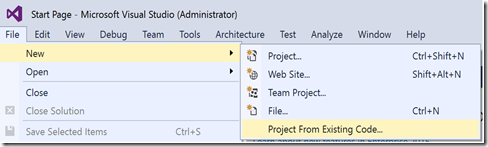
Microsoft introduced a new way to create code that targets multiple platforms, it’s a Visual Studio Add-In called Portable Library Tools (Available here)
Portable Library Tools is a new Visual Studio add-in from Microsoft that enables you to create C# and Visual Basic libraries that run on a variety of .NET-based platforms without recompilation.
In this post we are going to build a sample application for WP7 and Silverlight that uses the Portable Class Library Tools.
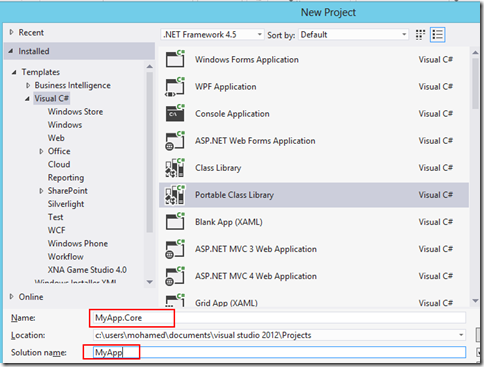
We will create a CustomersExplorer application that will allow the user to display and edit the customers from the AdventureWorks database, Let’s start by creating new solution we will add a web application project called CustomersExplorer.Web, in this project we will have an Entity Framework model that exposes the customers in the AdventureWorks database (the EF model will use ADO.NET self tracking entities), we will expose the model through a WCF service that uses webHttpBinding. the service code is shown below
We will add three more projects to the solution:
1. CustomersExplorer.Core: a Portable Class Library Project that will contain the shared code to be used in the Silverlight and windows phone apps
2. CustomersExplorer.Silverlight: the Silverlight application
3. CustomersExplorer.WP: the windows phone 7 application
The layout of the solution should be like the following
The CustomersExplorer.Core project will be used by the Silverlight and the Windows Phone applications, so we will add a reference to this project to the Silverlight and Windows Phone Projects.
Next we’ll change the settings of the CustomersExplorer.Core
project. By default when you create a new Portable Class Library project its settings is set to target the .Net 4.0, Silverlight 4.0 and Windows Phone 7.0 frameworks, we will change this to target Silverlight and Windows Phone. Go to the properties of the project and click Change button in the target frameworks section
In the dialog, choose Windows Phone 7.0 and Silverlight 4.0
We need to add a reference to the System.Windows assembly, this assembly contains the ObservableCollection type that we need in the Silverlight and WP applications, the dll is located in this path “C:\Program Files (x86)\Reference Assemblies\Microsoft\Framework\.NETPortable\v4.0\”
Next we need to add a service reference for the CustomersService, for some unknown reason If you tried to add a reference to the Customers service in the Portal Class Library project, the generated proxy class will not use ObservableCollection as the collection type, so we will use the SLsvcutil tool to create the proxy class, the slsvcutil tool is located in the folder “C:\Program Files (x86)\Microsoft SDKs\Silverlight\v4.0\Tools”
Run the tool with the following command line
Take the generated file CustomerService.cs and add it to the CustomersExplorer.Core project, the other generated file (ServiceReferences.ClientConfig) must be copied to the
CustomersExplorer.Silverlight and CustomersExplorer.WP projects.
In the CustomersExplorer.Core project we will create the CustomersViewModel, which exposes a property Customers of type ObservableCollection<Customer> , and a property CurrentCustomer of type Customer, two commands are exposed UpdateCustomerCommand and DeleteCustomerCommand that forward these actions to the Customers WCF service.
The Silverlight application is very simple, it has a single page with no code behind, the page creates an instance of the view model
The main grid DataContext property is bound to the View model
A combo box is used to display the customers
and a bunch of Text Boxes are used to display the details of the view model CurrentCustomer property
Two buttons “Delete” and “Updated” are bound to the view model DeleteCusotmer and UpdateCustomer commands
In the Windows Phone 7 project the View Model is defined in the application resources, cause we will have two pages that use the same view model. The first page has a list box that is bound to the view model Customers property
The second page displays the details of the CurrentCustomer
Here are some screen shots of the running applications
You can download the source code from here
I uploaded the sessions recordings for our last event to YouTube, you can find the list here:
http://www.devlifestyle.net/content/DevlifestyleJune2011EventRecordings.aspx
I will be delivering a session on MVVM Thursday June 30, in the DevLifeStyle community monthly meeting.
To register and view the detailed agenda, click here