Posts

Showing posts with the label VS2010

Silverlight 4.0 Tutorial (9 of N): Using the WebCam as a Barcode Scanner
Image
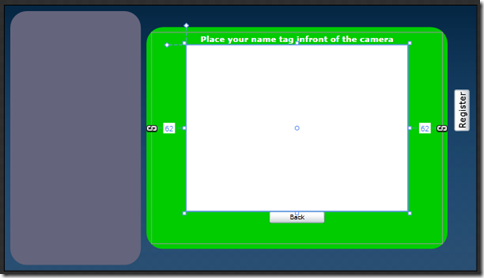
You can find a list of the previous tutorial posts here Continuing our RegistrationBooth Application, we want to allow registered users to evaluate sessions, we don’t have a credentials store in our application so to identify the registered attendees we will use a simpler approach, in part2 we allowed printing a name tag for registered attendees, this name tag contains a barcode of the attendee id, in this post we will see how can we use the new Silverlight 4.0 WebCam functionality to be able to scan/read barcodes and extract the attendee id to identify the corresponding attendee. During PDC09 Keynote, Scott Guthrie demonstrated a Silverlight Application that scans a book ISBN barcode and passes this ISBN to Amazon web service to retrieve the book information, we will reuse the code from this sample which can be downloaded from here . This sample actually uses a code from a CodeProject Article (by Berend Engelbrecht) that detects barcodes inside an image. the code is located in...
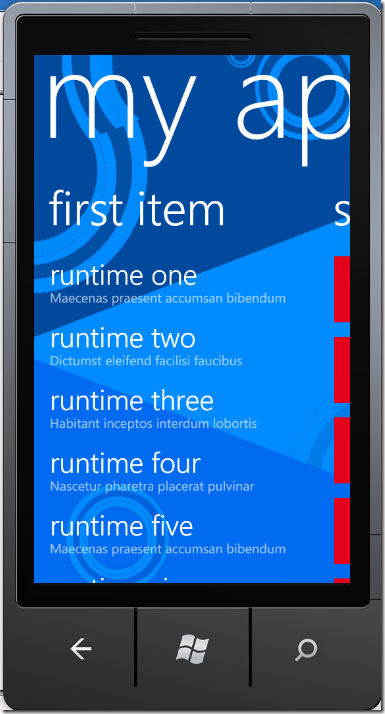

Windows Phone 7 Developer Tools RTM Problem

Image
I couldn’t get Windows Phone 7 Tools RTM to work, whenever i try to deploy the application i receive the following error “Connection failed because of invalid command-line arguments.” this long thread which comes on the top of the search results has the solution buried among all the replies http://social.msdn.microsoft.com/Forums/en-US/windowsphone7series/thread/fde4c415-44c5-4837-b1cd-e09727a75b92/ the problem was that the Virtual Machine Manager (VMM) service used by the Windows Phone Emulator was not running. you can query the status of the VMM service from command window by typing the command “sc query vmm” , if the service is stopped, start it by the following command (run the command window as administrator) “sc start vmm”. Thanks god :), this version of the emulator is faster than the previous ones. Here is a screenshot of a default Windows Phone Panorama Application

Silverlight 4.0 Tutorial (8 of N): Fluid Layouts

Image
Read Previous Posts: Part1 , Part2 , Part3 , Part4 , Part5 , Part6 , Part7 In our last post we implemented visual states for our application, you may have noticed in the States tab in Blend the Default Transition section the default transition is applied when moving from any state to any other state. - You can create transitions between any pair of states, for each transition you specify how long it will take (transition duration) and the easing function to be used. the easing function makes the animations look real, so instead of the linear interpolations of the values that change between states you can choose the appropriate easing function to interpolate the values, there are many easing functions in Blend (quadratics, cubic, bounce, elastic, etc.) and you can even code your own easing function. - You can see a preview of the state transitions by turning on the transition preview (click on the icon highlighted in the below image) by turning on the transition preview whenever ...

Silverlight 4.0 Tutorial (7 of N): Visual States

Image
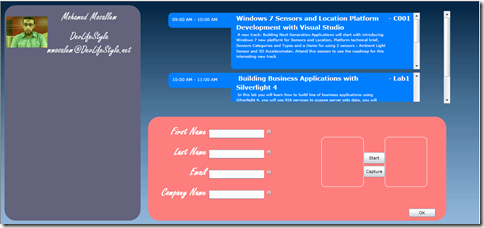
Read Previous Posts: Part1 , Part2 , Part3 , Part4 , Part5 , Part6 Continuing our registration booth application, i did some changes to the application UI, here’s how the application look like right now - As you can see i removed the navigation features in the application, we will keep it as a one simple xaml page, i also changed some colors (excuse my poor color picking skills). - After looking at the UI i think that the agenda is not taking enough space, the lower DataForm is taking more space while this DataForm is needed only when someone wants to register, the focus of the default UI should be the agenda and the registered attendees, so we need to make the DataForm invisible and show it on demand, this is pretty easy to do, first i will add a button to view/hide the DataForm. - I will add a new column to the LayoutRoot grid and put the button inside this column, i will also add a simple rotate transform for this button - The button should look like this - Fi...

Silverlight 4.0 Tutorial (6 of N): Working with the ItemsControl

Image
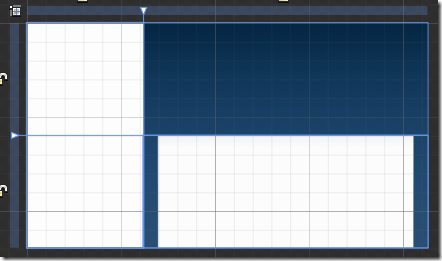
Read Previous Posts: Part1 , Part2 , Part3 , Part4 , Part5 In this part of the series we will build the event agenda - First let’s try to make some room on the UI for the agenda, add a new row to the LayoutRoot grid, make sure that the attendees ListBox has RowSpan=2, then move the DataForm to the lower right cell, we will display the agenda in the upper right cell, Now our home page should look like the following - To build the agenda let’s recall our data model, we have a table TimeSlot that contains the different time slots in the event, each session is assigned to one time slot and each time slot can have one or more session. - We will need to retrieve all the time slots along with the sessions in each time slot, to do this go to the RegistrationDomainService.cs file in the RegistrationBooth.Web project, change the GetTimeSlots method as follows public IQueryable < TimeSlot > GetTimeSlots()       ...

Silverlight 4.0 Tutorial (5 of N): More Blend!

Image
Read Previous Posts: Part1 , Part2 , Part3 , Part4 Continuing our series for building a registration booth application using Silverlight 4.0, in this post we will continue working with Expression Blend - Open Home.xaml, select the LayoutRoot grid in the Objects and Timeline window, set the Width and Height properties to Auto so that the grid takes all the screen size. - Now we will change the background color of the page, select the LayoutRoot grid, go to the Background property and select the Gradient Brush option. - The Gradient brush we will use will have three gradient stops, you can click on the gradient bar (below the color mixer) to add a gradient stop at the specified offset, to remove a gradient stop click, hold, and drag your mouse off the gradient bar. for each gradient stop you can specify the color (RGB, Alpha). - The xaml for the grid background will be as follows. < Grid.Background >         < LinearGradientBrush EndPoint =...

Silverlight 4.0 Tutorial (4 of N): ListBox ItemTemplate

Image
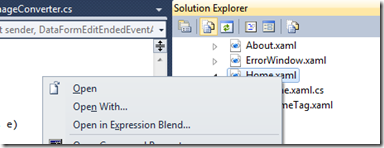
Read Part 1 Read Part 2 Read Part 3 Continuing our RegistrationBooth Application, if you take a look at what we ended with you will find that the attendees data grid that we have is not user friendly, our application should be more attractive to the users, so we will get rid of the data grid and we will use a List box that has a custom template for displaying attendees, in this post we will start using Blend to assist in designing the application UI - Right click the xaml file in Visual Studio and choose Open in Expression Blend , this will open your solution in Blend. - Delete the attendeeDataGrid from the Home.xaml file. - We will change the layout of the form we will use a grid with two columns the width of the first one is about third of the screen width and we will put the list box in this column, and the second column take the remaining screen width and this is where we will put the attendees data form. - To do this, go to the Objects and Timeline window (if not...